Multi-Step Forms Pro
Break long forms into manageable steps with a progress bar and per-step required-field validation.
Why Multi-Step?
Long forms can feel overwhelming. Splitting them into steps improves completion rates by showing users a clear path forward and reducing the perceived complexity.
- Higher completion rates compared to single-page forms
- Better user experience on mobile devices
- Per-step validation catches errors early
- Progress bar keeps users motivated
Creating a Multi-Step Form
Enable Multi-Step Mode
Select the Form Container block. In the block inspector, toggle on Multi-Step Mode Pro.
Add Step Blocks
Inside the Form Container, add Giraforms Step blocks. Each Step block represents one page of the form. Place your fields inside each Step block.
Name Your Steps
Give each step a descriptive title (e.g., "Personal Info", "Contact Details", "Review"). These titles appear in the progress bar.
Arrange Fields
Drag and drop fields into the appropriate step. You can move fields between steps by cutting and pasting.
Progress Bar
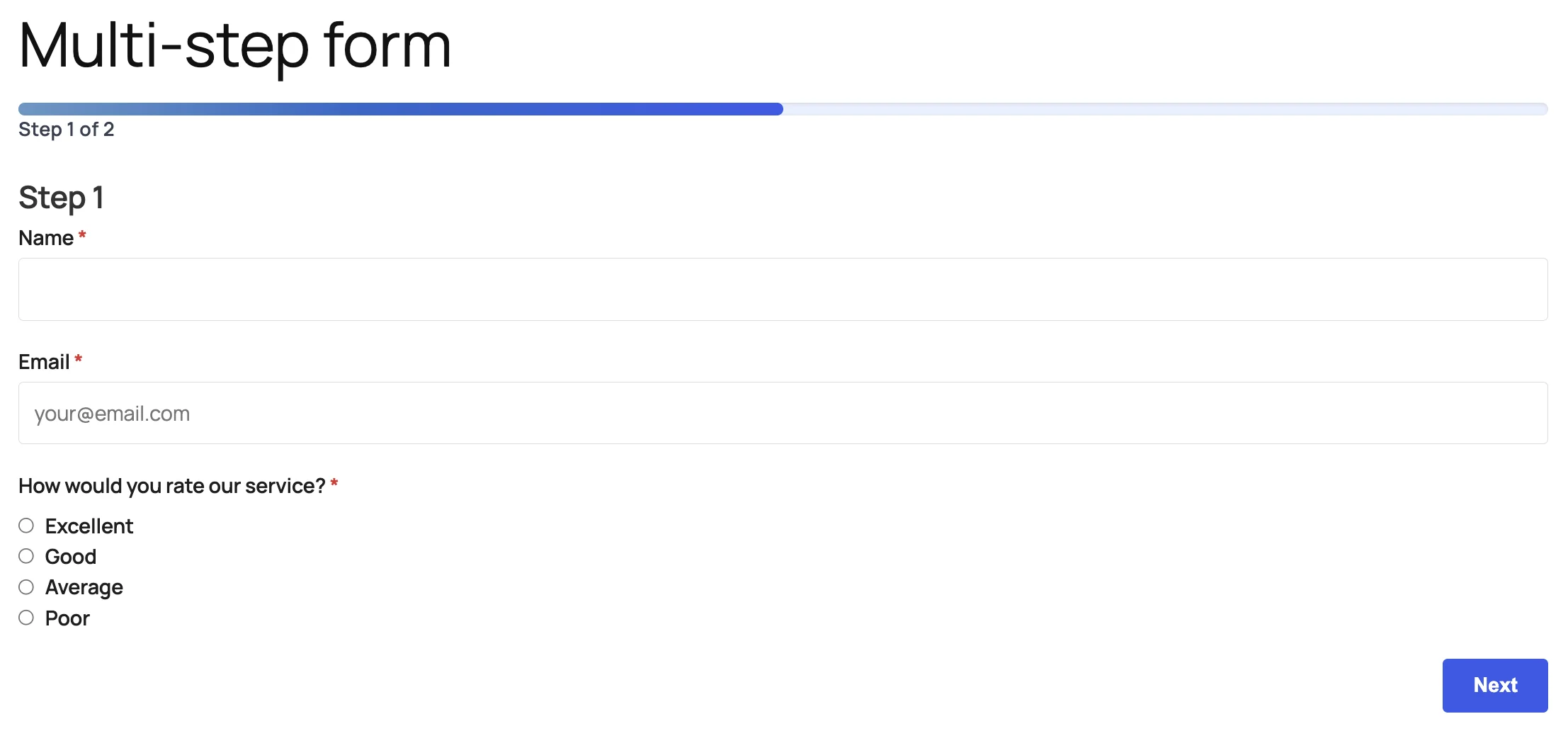
The progress bar appears at the top of the form and shows users where they are in the process. Configure its appearance in the Form Container settings:
| Setting | Description |
|---|---|
| Style | Bar, circles, or numbered steps |
| Active Color | Color of completed/current steps |
| Inactive Color | Color of upcoming steps |
| Show Labels | Display step titles below the progress indicator |
| Show Step Numbers | Display "Step X of Y" text |
Navigation
Users navigate between steps using Next and Previous buttons that appear automatically:
- Next button — validates the current step before proceeding
- Previous button — goes back without losing entered data
- Submit button — appears only on the last step
Custom Button Text
Customize the navigation button labels in each Step block's settings:
- Default Next: "Next"
- Default Previous: "Previous"
- Example: "Continue to Payment", "Back to Details"
Per-Step Validation
When a user clicks Next, all required fields in the current step are validated before moving forward. If any field fails validation:
- Error messages appear next to the invalid fields
- The user stays on the current step
- The form scrolls to the first error
Example: Registration Form
3-Step Registration
A typical multi-step registration form might be organized as:
- Step 1 — Account: Email, Password, Confirm Password
- Step 2 — Profile: First Name, Last Name, Phone, Company
- Step 3 — Preferences: Newsletter checkbox, Consent, Submit
Tips & Best Practices
- Keep each step focused — 3–5 fields per step is ideal
- Use descriptive step titles so users know what to expect
- Put critical required fields early in the form
- Test the form on mobile to ensure step navigation is smooth
- Combine with Conditional Logic to skip steps based on user input
Break long forms into steps
Multi-step forms with progress bar, per-step required-field validation, and custom navigation. Available with Giraforms Pro.
Get Giraforms Pro