Conditional Logic Pro
Show, hide, or modify fields dynamically based on user input. Create smarter, adaptive forms.
How It Works
Conditional logic lets you define rules that control field visibility. When a user fills out the form, fields appear or hide in real-time based on their answers — no page reload required.
Setting Up a Rule
Select the Target Field
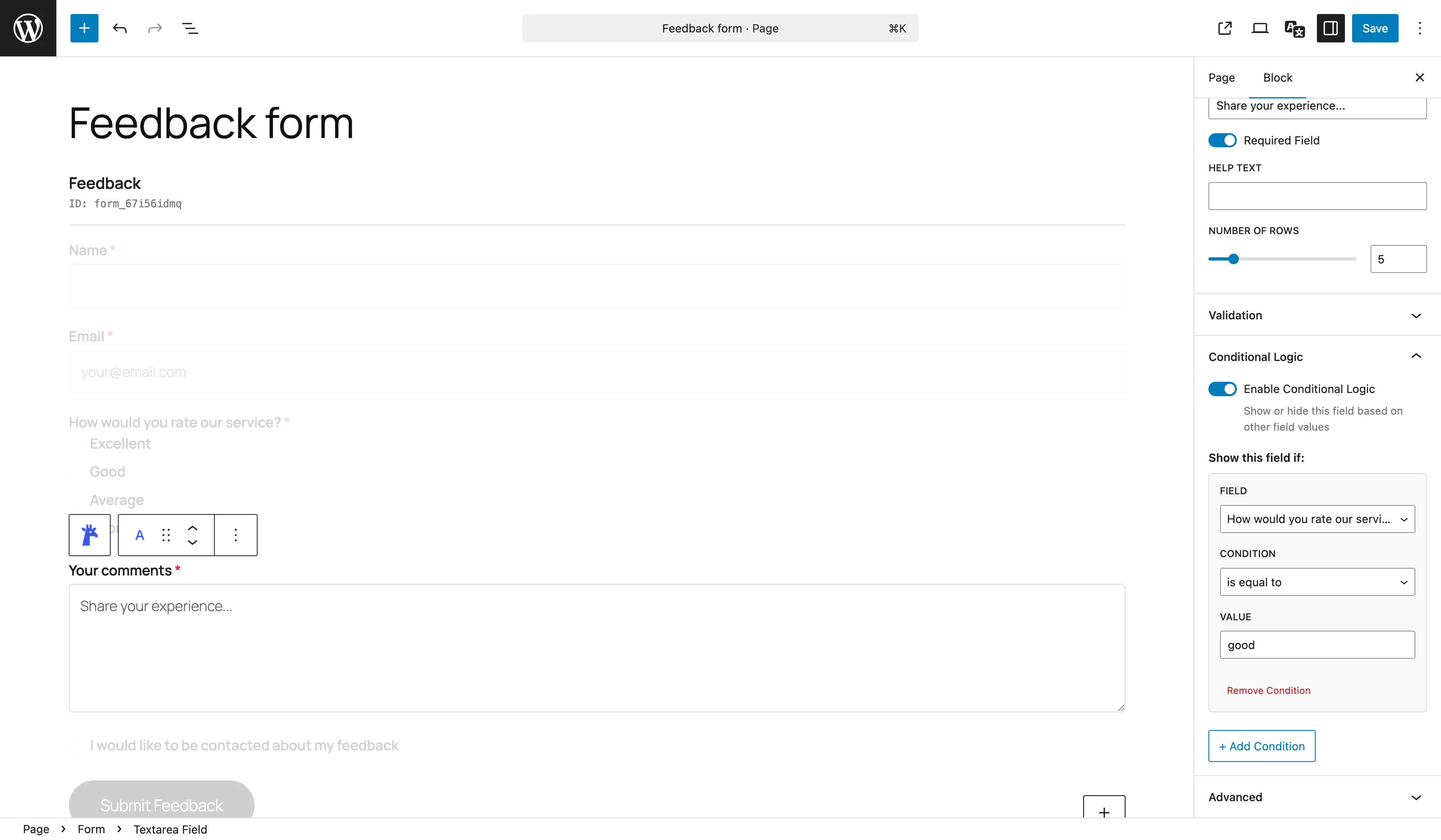
Click on the field you want to show or hide conditionally. In the block inspector, open the Conditional Logic Pro panel.
Enable Conditional Logic
Toggle on Enable Conditional Logic. Choose the action:
- Show this field if... — field is hidden by default, shown when conditions are met
- Hide this field if... — field is visible by default, hidden when conditions are met
Define Conditions
Add one or more conditions. Each condition has three parts:
- Field — the field whose value to check
- Operator — how to compare the value
- Value — the value to compare against
Set Match Mode
When you have multiple conditions, choose how they combine:
- All conditions (AND) — every condition must be true
- Any condition (OR) — at least one condition must be true
Available Operators
Giraforms Pro supports 10 comparison operators:
| Operator | Description | Example |
|---|---|---|
| equals | Exact match | Country equals "France" |
| not equals | Does not match | Status not equals "Student" |
| contains | Value includes the text | Message contains "urgent" |
| does not contain | Value excludes the text | Email does not contain "spam" |
| starts with | Value begins with | Phone starts with "+33" |
| ends with | Value ends with | Email ends with ".edu" |
| is empty | Field has no value | Company is empty |
| is not empty | Field has a value | Phone is not empty |
| greater than | Numeric comparison | Age greater than 18 |
| less than | Numeric comparison | Quantity less than 100 |
Examples
Show a field based on a dropdown
Example: "Other" text field
Show a text field labeled "Please specify" only when the user selects "Other" in a dropdown.
Rule: Show "Please specify" field if "Category" equals "Other"
Show fields based on a checkbox
Example: Newsletter preferences
Show a "Preferred frequency" radio group only when the "Subscribe to newsletter" checkbox is checked.
Rule: Show "Preferred frequency" if "Subscribe to newsletter" is not empty
Multiple conditions
Example: Discount code for qualifying orders
Show a "Discount code" field only when the order total exceeds 100 AND the user is in France.
Rule (AND):
- "Order total" greater than "100"
- "Country" equals "France"
Tips & Best Practices
- Keep conditions simple — complex nested logic can confuse users
- Test your forms thoroughly with different input combinations
- Use meaningful field names to make rules easier to read
- Remember that required validation is skipped for hidden fields
Build smarter forms
Conditional logic with 10 operators, AND/OR mode, and real-time evaluation. Available with Giraforms Pro.
Get Giraforms Pro