Email Notifications
Configure admin alerts and user confirmation emails sent when a form is submitted.
Admin Notification
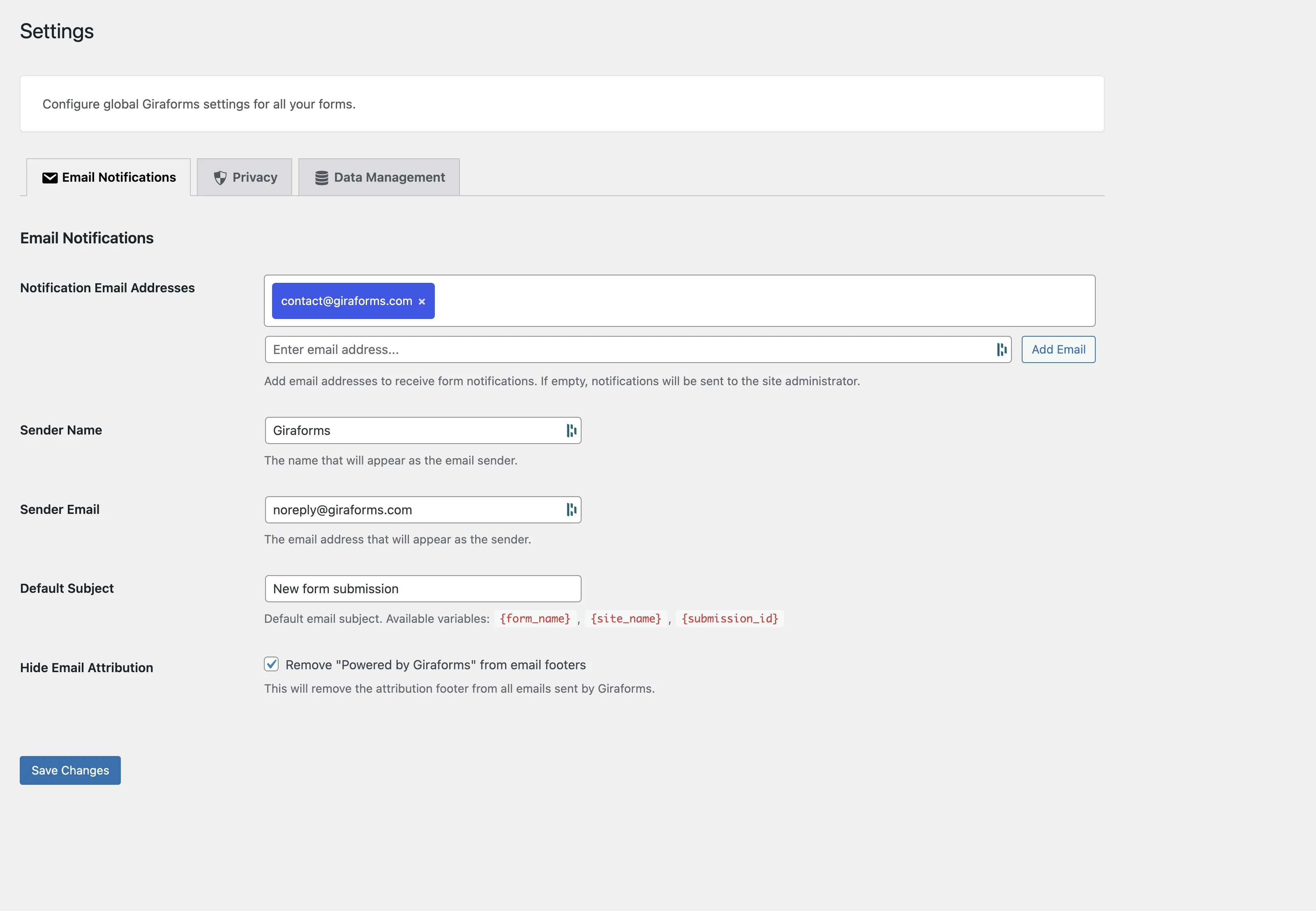
By default, Giraforms sends an email to the site admin when a form is submitted. Global email settings are configured under Forms → Settings.
| Setting | Description | Default |
|---|---|---|
| Notification Emails | Recipient email address(es), one per line | Site admin email |
| Email Subject | Default email subject line — supports merge tags | New submission from {form_name} |
| From Name | Sender name shown in the email | Site name |
| From Email | Sender email address | WordPress default |
You can also enable or disable email notifications per form in the Form Container block settings.
Merge Tags
Insert dynamic values from the submission into the subject or body:
first_name, email) so you can easily reference them as merge tags like {first_name}.
User Confirmation Email
Send an automatic confirmation email to the person who submitted the form:
Enable Confirmation
In the Form Container settings, toggle on Send Confirmation Email.
Set the Recipient Field
Choose which email field receives the confirmation (e.g., the field named email).
Customize the Message
Write a custom subject and body using merge tags. Example:
Email Templates Pro
With Giraforms Pro, enhance your emails with professionally designed HTML templates:
- Pre-built templates — choose from several responsive email layouts
- Custom header — add your logo and brand colors
- Custom footer — include contact info, social links, or legal text
- Per-form templates — different templates for different forms
Select a Template
Go to Forms → Email Templates Pro to create and manage email templates.
Customize Branding
Upload your logo, set primary/secondary colors, and edit the header/footer text.
Preview & Save
Use the Send Test Email button to preview how the email looks in real inboxes.
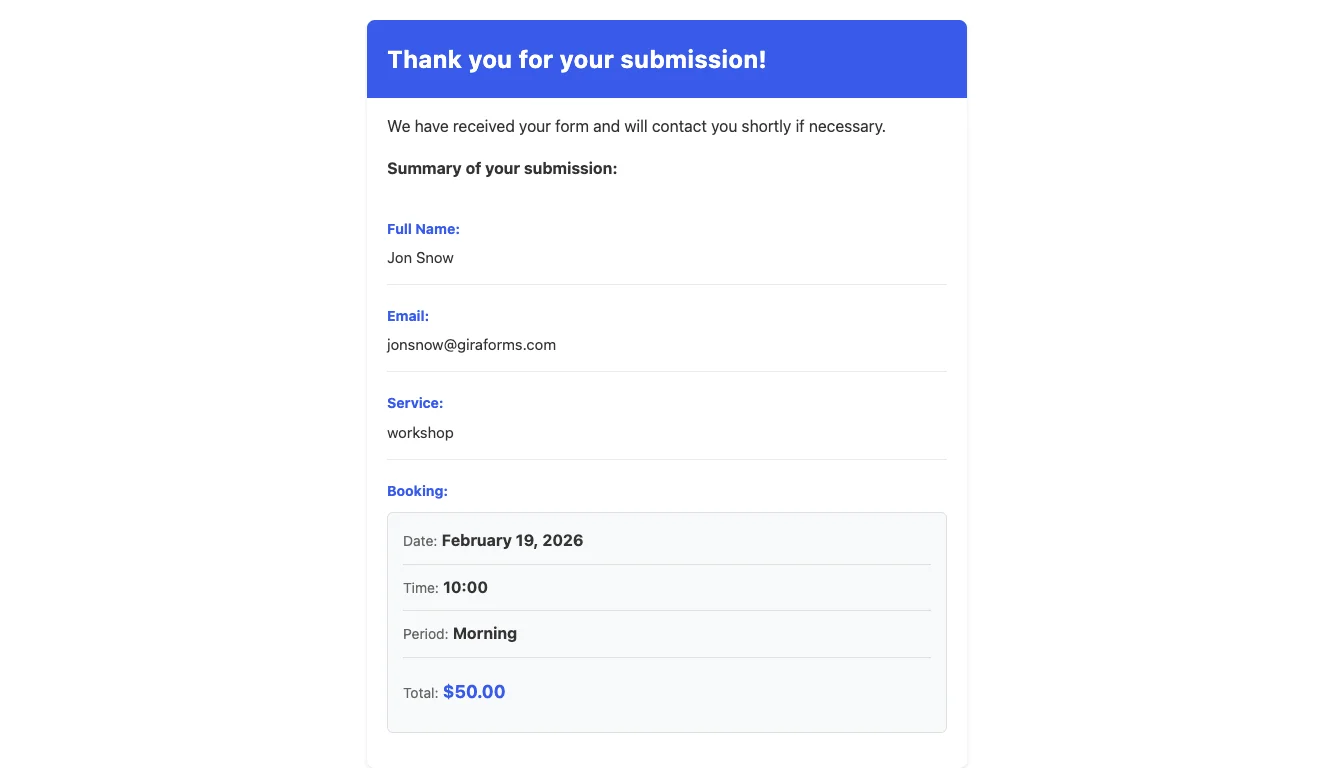
Professional email templates
Brand your notification emails with custom headers, footers, colors, and logos with Giraforms Pro.
Upgrade to ProTroubleshooting
wp_mail() which relies on your server's mail configuration. If emails aren't being delivered, install an SMTP plugin (e.g., WP Mail SMTP) to send emails through a reliable mail service.
- Check the Send To address for typos
- Look in spam/junk folders
- Verify your server supports
mail()or use an SMTP plugin - Use Send Test Email to debug delivery issues